Quick settings for the host
The quick settings menu is not meant for the operator but for the host — the customer who has the booth for an evening. It gives them a PIN-protected area in which they can react to a failed printer, dead Wi-Fi or a queue that is too long, without the operator having to drive over.
It is configured in the admin area under "Quick Settings Menu"; it belongs to the event, so it can differ per party. Often nothing at all at a company party, and a fair bit at a wedding with a designated contact.
Setting it up#
- Set a PIN (4 to 12 digits). The host opens the menu with it. "Remove PIN" releases the menu without one.
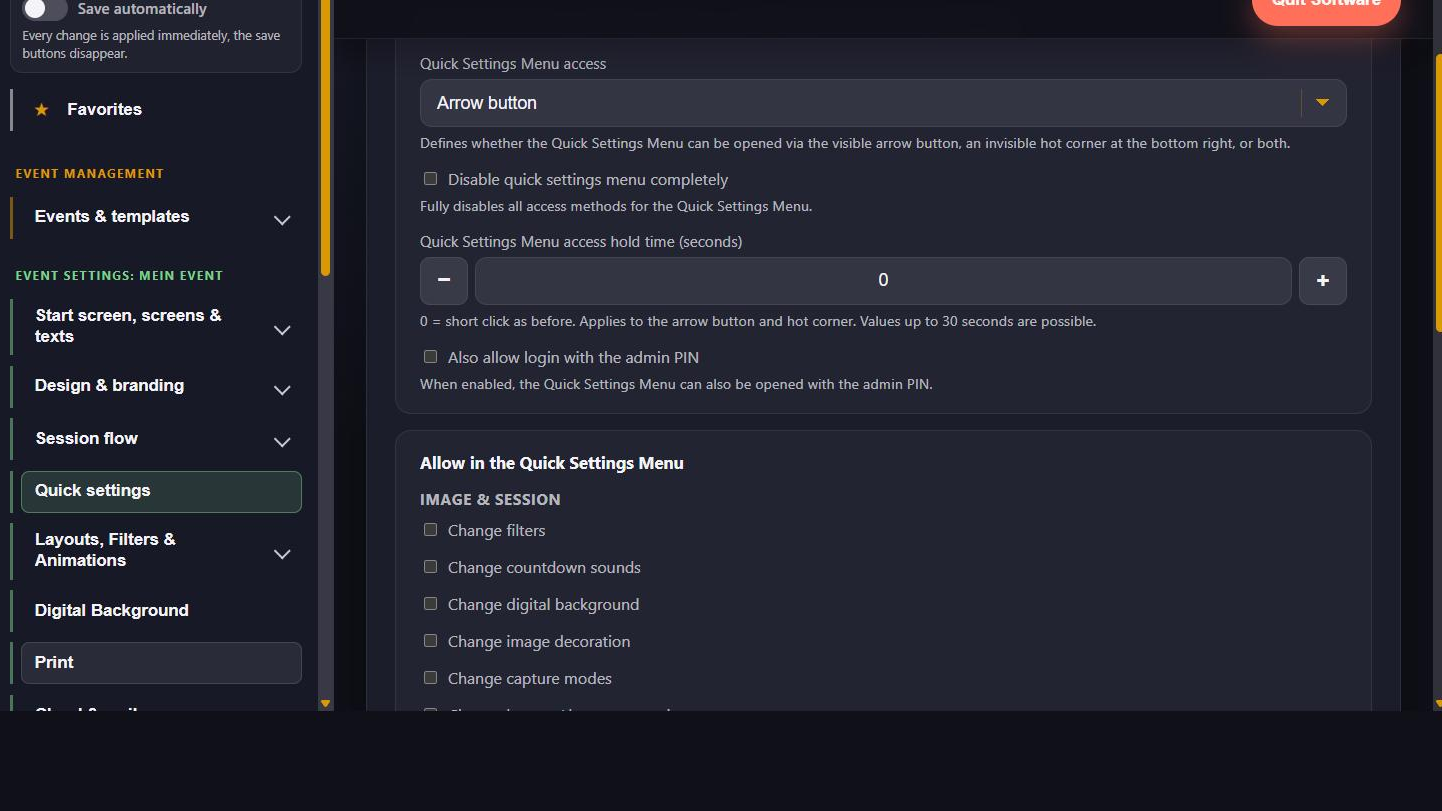
- Choose the access: through the visible arrow button, through an invisible corner at the bottom right of the screen, or both. A hold duration can be added — the area then has to be held for a few seconds so a guest does not hit it by accident.
- Tick the permissions: every single switch is released or blocked. Anything not ticked does not appear in the menu at all.
Optionally the menu can also be opened with the admin PIN.
Instead of the arrow symbol the button can carry a custom image: choose a file under "Access & Opening", cut-out PNG files work best. "Remove" brings the arrow symbol back. The image belongs to the event and travels with copies and exports.
What can be released#
| Group | Switches |
|---|---|
| Start screen | Gallery button, contact button |
| Picture & session | Capture modes, filters, "decorate picture", digital background, countdown sounds, buzzer or key control |
| Output | Printing, automatic printing, mail sending |
| Sharing & online | Cloud upload, web album QR, single-image QR, online/offline mode |
| Exposure | Live view exposure, capture exposure |
| System | Restart or quit the software, restart or shut down the machine |
The two exposure entries behave differently from the rest. The live view exposure is applied with "Save" like any other switch. The capture exposure is not stored: the values are read from the camera when the menu opens, and every step goes straight back to it. If the camera is not set to M, or regulates the ISO itself, the note is right there — otherwise someone turns the dial and nothing arrives.
Counters#
The counters for sessions, prints and AI portraits appear at the top of the menu. Under "Show counters", each one can be hidden individually, for example if the organiser should not see the number of prints. The AI portrait counter only appears anyway when the feature is active in the event or portraits have already been created. With all three off, the counter area is omitted entirely.
Recommendation for the handover#
A small, clearly explained selection works better than every switch. Proven useful:
- Printing — in case the paper runs out or the printer refuses.
- Cloud upload and online/offline mode — in case the venue Wi-Fi dies.
- Capture modes — to switch off GIF and boomerang when the queue gets long.