Installation
System requirements#
| Operating system | Windows 10 or Windows 11, 64-bit in each case |
| Screen | Touchscreen, portrait or landscape; resolution from 1280 × 800 |
| Additionally required | Microsoft WebView2 Runtime (already present on current Windows installations) |
| For printing | A printer set up in Windows |
| For cloud, mail and web photo album | An internet connection, at least occasionally |
Without an internet connection the booth keeps working: capture, layout, print and gallery need no network. Only sending, cloud upload and the licence check catch up later.
Moving up from the 32-bit edition#
As of version 3.3.0 RAWCaptureBooth is released as a 64-bit edition only. Anyone who used the 32-bit edition so far simply installs the 64-bit one: events, layouts, captures, settings and the licence live outside the program folder and remain available unchanged. The licence does not need to be activated again.
On 32-bit Windows the previous version 3.2.0 keeps working, but receives no new features.
Installing#
- Run the installer:
RAWCaptureBooth_..._x64_Setup.exe. - Choose the language, then accept the licence terms and the privacy notice. The language chosen here also sets the language of the application; it can be changed later in the admin area.
- Confirm the target folder. The default is the Windows program folder.
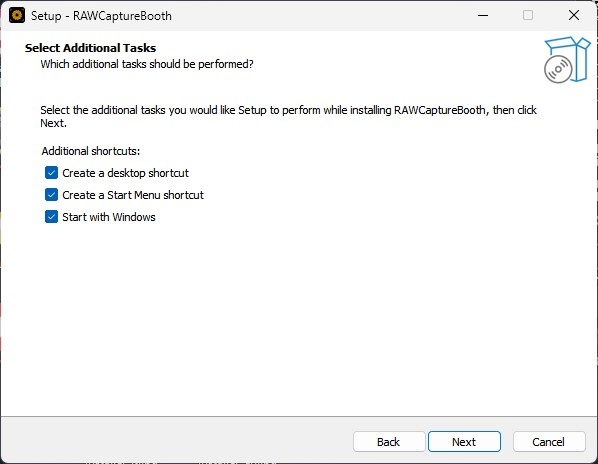
- Choose the additional tasks:
- Desktop icon and Start menu entry — preselected on a first installation.
- Start with Windows — useful for kiosk operation, so the booth comes back on its own after a power cut. Can be changed later under "System Settings" > "System".
- Finish the installation and start the application.
Where the data lives#
The program itself sits in the program folder, while everything that changes lives in the profile of the signed-in user:
%LOCALAPPDATA%\RAWCaptureBooth\
├── config\      device settings
├── events\      per event: settings, layouts, graphics, pictures
├── storage\     working files of the current session
├── logs\        logs for troubleshooting
└── backups\     backups
Uninstalling leaves this folder in place, so pictures and settings survive a reinstall.
First launch#
On the very first launch a short setup assistant sits on top of the start screen. It covers language, admin access and licence. See First start.
Updating#
An update is installed with the same installer; no uninstall is needed. Settings, events and pictures are kept. The software reports new versions itself and shows the list of changes.