Managing events
Found under admin area "Event management" > "My events". Every event is listed with name, period or date, note, counters and disk usage; the loaded event is highlighted.
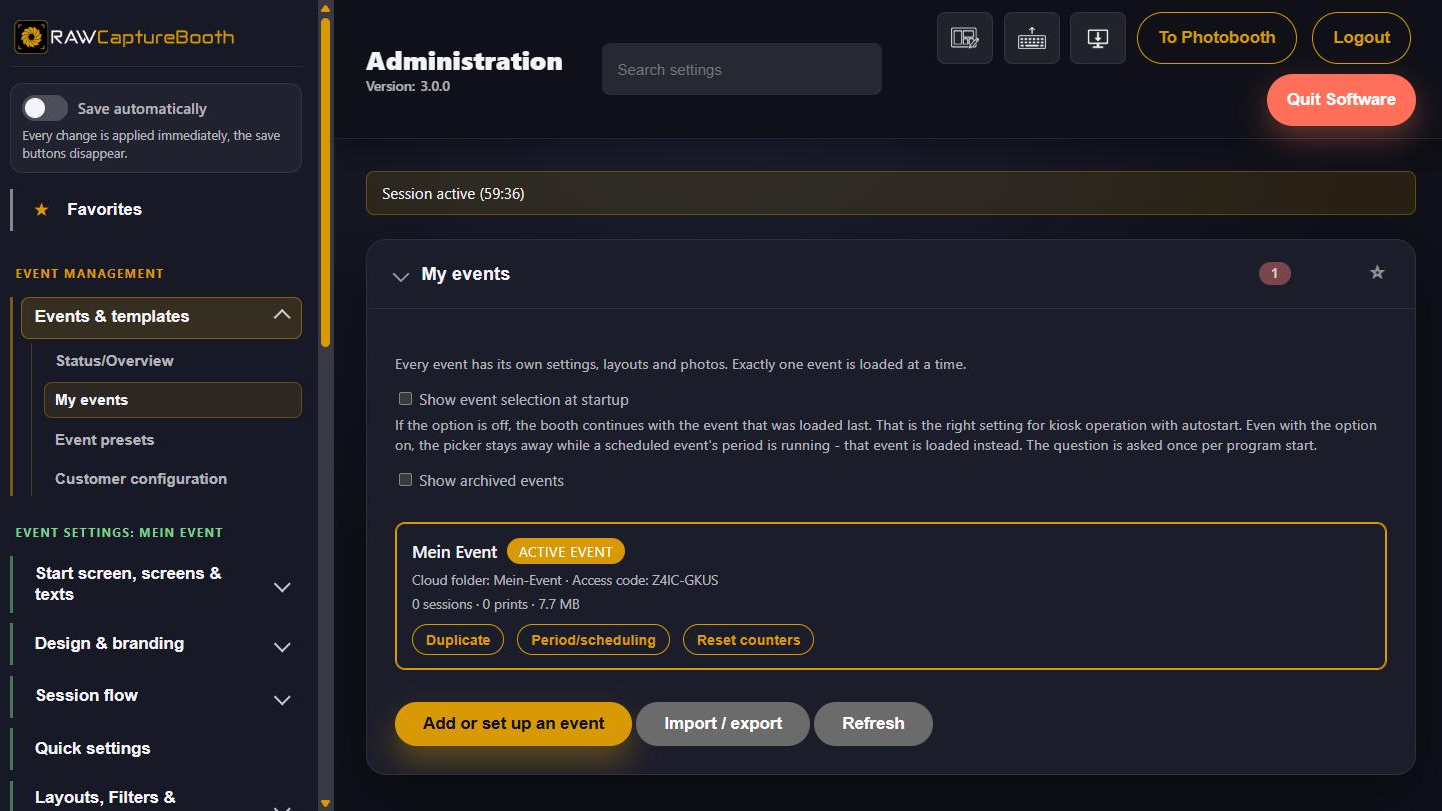
Actions per event#
All actions sit behind the "Actions" button at the top right of the event card. Tapping it opens the list, tapping elsewhere or pressing Escape closes it again.
| Button | Effect |
|---|---|
| Load | Makes the event the active one. Layouts, graphics, access code and limits travel with it |
| Edit event | Opens the event assistant with this event. If it is not loaded, it is loaded first - the assistant then opens by itself |
| Duplicate | Creates a copy without pictures. The quick settings PIN is copied along |
| Planning | Set start and end, see below |
| Counter reset | Sets sessions, pictures, animations and prints to zero. The pictures themselves stay |
| Export photos | Writes this event's pictures into a target folder. The event does not have to be loaded for that |
| Archive | Removes the event from the selection while keeping it complete. "Show archived events" brings it back into the list |
| Delete | Removes the event. You are asked whether the pictures should go too |
| Open folder | Shows this event's folder in Windows Explorer. Only on the photo booth computer |
The name can be changed in the list: the pencil behind it turns it into an input field, Enter saves, Escape cancels. The same symbol sits in the line below behind the cloud folder or the identifier and behind the access code; behind the period it opens the planning. Only the value the pencil belongs to is changed.
A note per event holds what would otherwise end up on a scrap of paper — contact person, teardown time, special arrangements. It is only visible internally.
Where the pictures are stored#
At the bottom of the section the storage location of the events and pictures is shown, next to it two buttons: "Open folder" shows it in Windows Explorer, "Copy path" puts it on the clipboard. For every event a separate button leads straight into its folder.
The folder holds the working data of the software and is not a place to tidy up: renamed, moved or deleted files can cause malfunctions. To get pictures out — onto a USB stick, for example — use the "Export photos" button on the card of the event or admin area "Data Processing" > "Export event photos". Both open the same export.
A link below the notice explains why the folders are nested per event and per session — the arrangement differs from what Sparkbooth, dslrBooth or LumaBooth create.
Photos of deleted events#
The "Photos of deleted events" section lists what deleted events left behind on the hard disk: name, date, deletion time, number of files and disk usage per folder. One button per entry leads into the folder, a second removes it permanently; "Clean up all" sits at the top of the section.
It is needed twice: shortly after deleting, when the displayed path was not written down — and weeks later, when disk space runs short and nobody remembers which folders are still occupied.
Scheduling and automatic loading#
"Planning" defines when the event applies:
- Start and end with times, across midnight as well. If the party ends after midnight, simply enter the following day's date as the end.
- Without an end, the period runs to the end of the starting day.
- Without a period nothing changes: the event is loaded by hand.
What follows from that:
- At startup the event is loaded automatically if its period is currently running — even after a restart in the middle of the party.
- While running, the admin area suggests loading the matching event when you sign in. The switch only happens after confirmation, because it exchanges layouts, graphics, access code and limits.
- If two periods overlap, the one that started most recently is suggested; both events are kept.
- The head of the list states which event will be loaded next by itself.
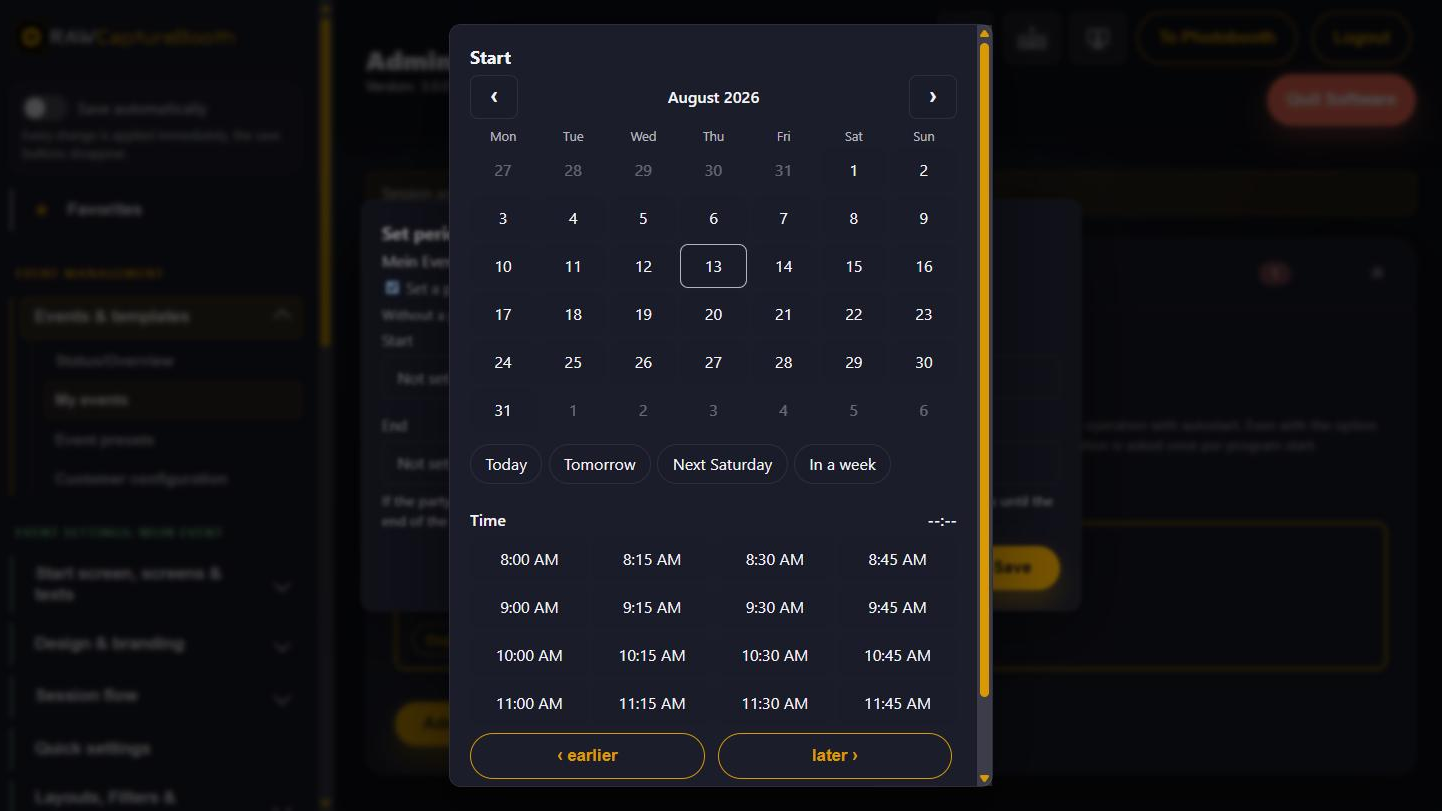
Date and time are set on a screen of their own: a month calendar with large day tiles, times in quarter-hour steps, plus "Today", "Tomorrow", "Next Saturday" and "In a week".
Event picker at startup#
The switch "Show event picker at startup" makes the booth ask which event to load when the program starts. The picker appears instead of the start screen and waits without a timeout; "Continue without switching" keeps the last loaded event. The question is asked once per program start.
With the option off, the last loaded event simply continues — the right setting for kiosk operation with autostart. If a scheduled event's period is running, the picker is skipped anyway and that event is loaded.
Backing up, moving, handing over#
Below the event list, "Import, export & handover" leads to event packages. A package contains the settings, layouts, digital backgrounds and graphics of a party — and, if you want, its pictures.
On export you choose whether the pictures come along; the checkbox states in advance how much extra space they need. Archived events can be backed up as well.
The package also contains the access code and the quick settings PIN — so that a backup after a device failure is complete and QR codes already handed out still work.
On import a new event is always created; an existing one is never overwritten. The access code from the package is kept so that QR codes handed out keep working. If it is already in use on this booth, a new one is generated automatically.
After the import the event exists but is not loaded yet — tap "Load" in the list for that.